Managing Submissions in Dapple: From a Live Form to a Final Decision
The complete guide to viewing, organising, reviewing and reporting on submissions once your form is live.

Published on August 10, 2026
Reading time: 8 mins
 Dapple Team
Introduction
Once your submission form is live, running a programme in Dapple comes down to a handful of repeatable jobs: seeing what's come in, moving it through your stages, keeping your team coordinated, getting it in front of reviewers, reading what they think, and getting the results out to the applicants. This guide walks through that whole cycle. Each section covers how the workflow fits together — for exact click-by-click steps, follow the links through to the relevant article in the Dapple Help Centre.
1. Viewing and organising your submissions
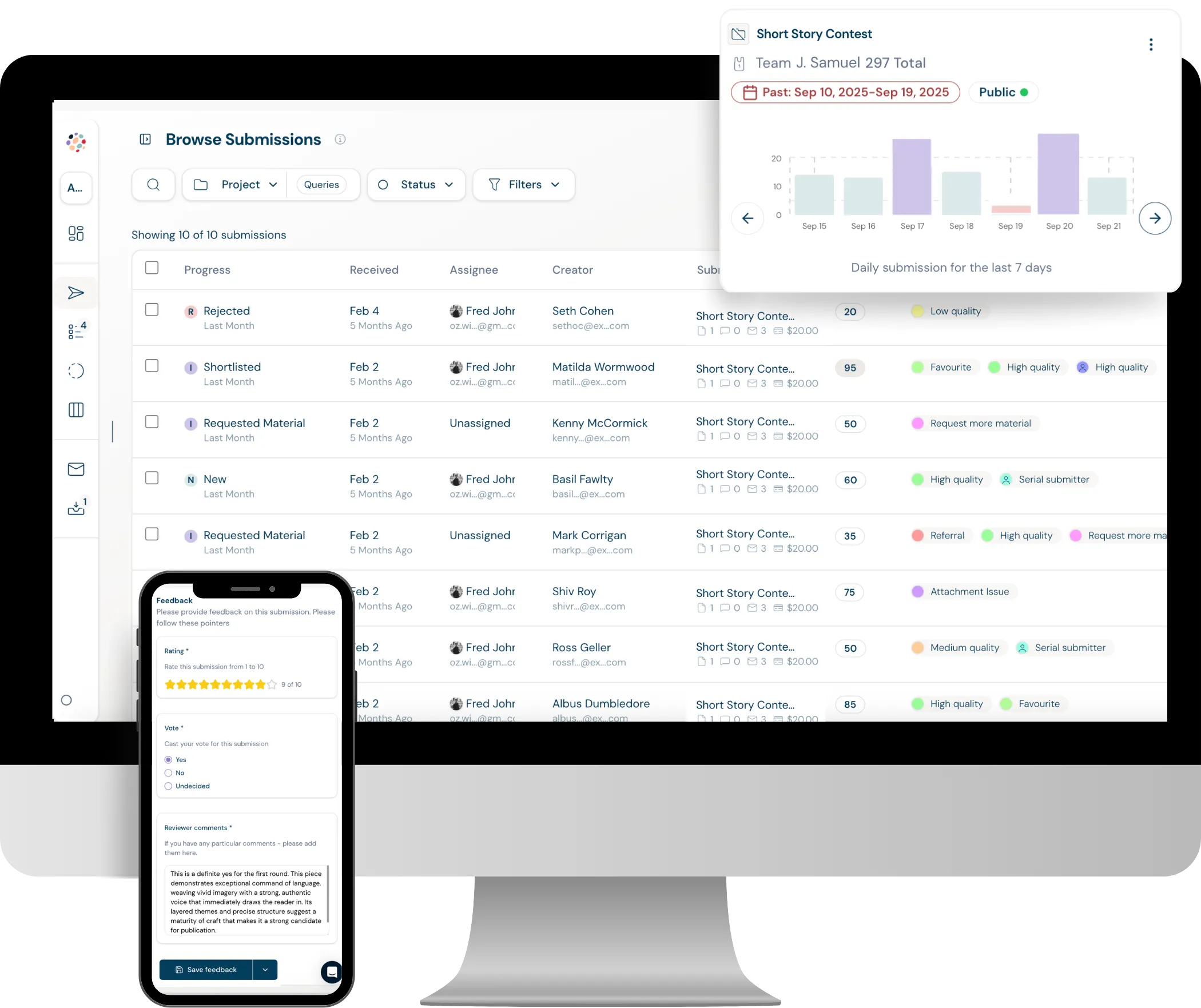
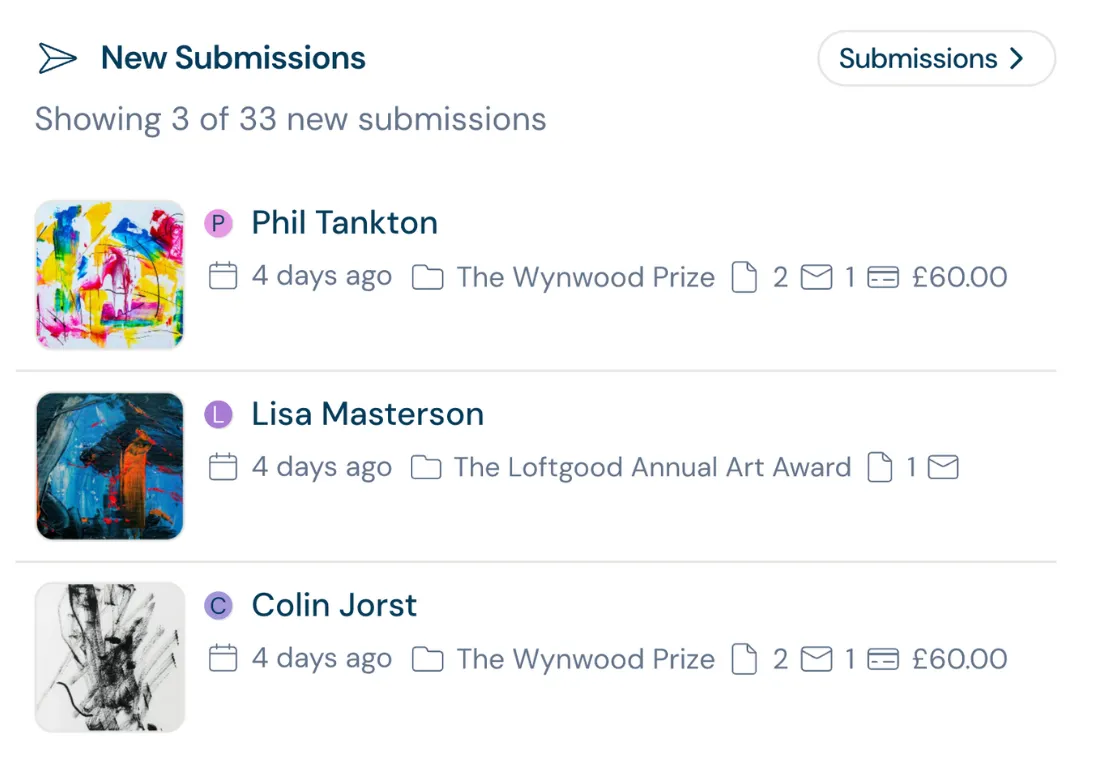
Every submission across every project in your organisation lands in one place, the Submissions List. From here you filter by project, status, stage, tag, score, assignee or received date, and filters stack: add a Project, then a Stage, then a Tag, and the list narrows to only what matches all three. Save any combination you use regularly as a View so it's one click to recall, and export directly from your filtered list whenever you need the data elsewhere.
2. Moving submissions through stages
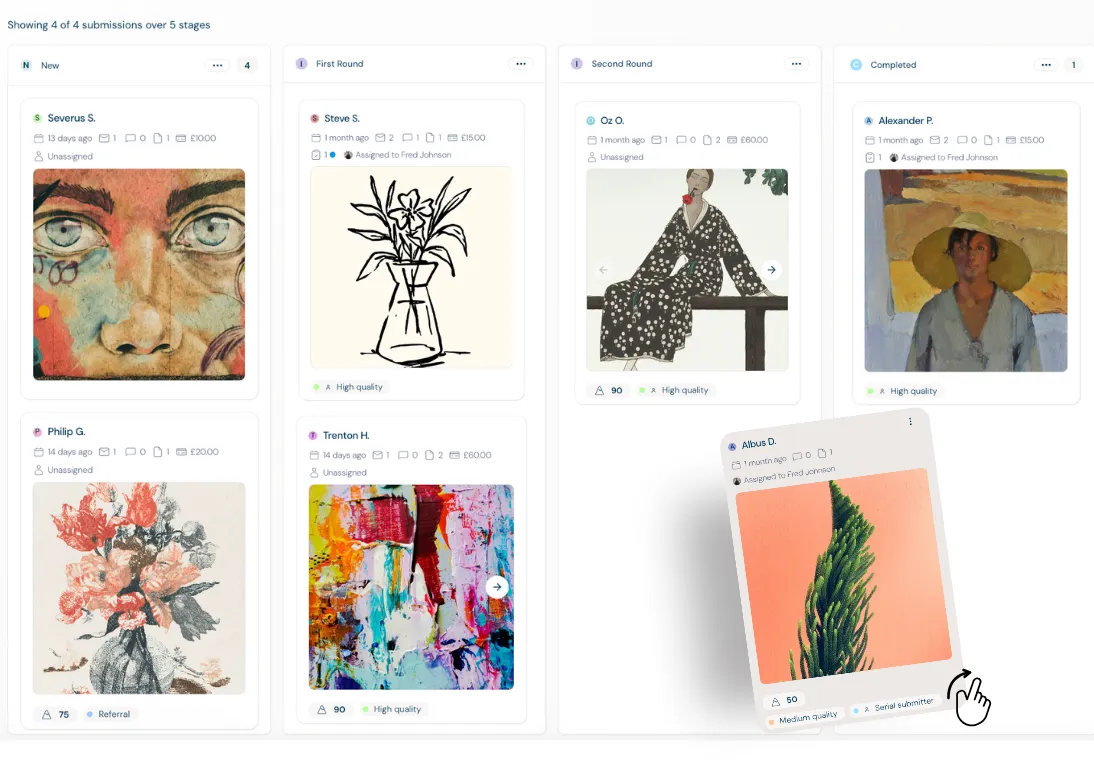
A stage is a step in your submission's journey through a project — New, Longlist, Shortlist, Selected, Rejected, or whatever fits your programme - you can create as many as you want and call them what you will. Every project has its own stages, shown as columns on a Kanban-style board, so your team can see where everything sits at a glance. Underneath your custom stage names, Dapple also tracks four fixed statuses — New, In Progress, Rejected, Completed — which keep progress consistent for creators and admins no matter how your workflow is set up.
| Programme type | A typical stage set-up |
|---|---|
| Academia or publishing | New → First Read → Second Read → Shortlist → Accepted → Published |
| Awards or contest | Entries → Round 1 → Round 2 → Finalists → Winners |
| Residency | Applied → Longlist → Interview → Offered → Confirmed |
| Grants | Submitted → Eligibility Check → Review Panel → Funded |
Move submissions on individually, in a filtered batch from the Submissions list, or by advancing an entire stage column in one go from the Stages board — whichever fits the size of the move or your way of working.
3. Keeping your team coordinated
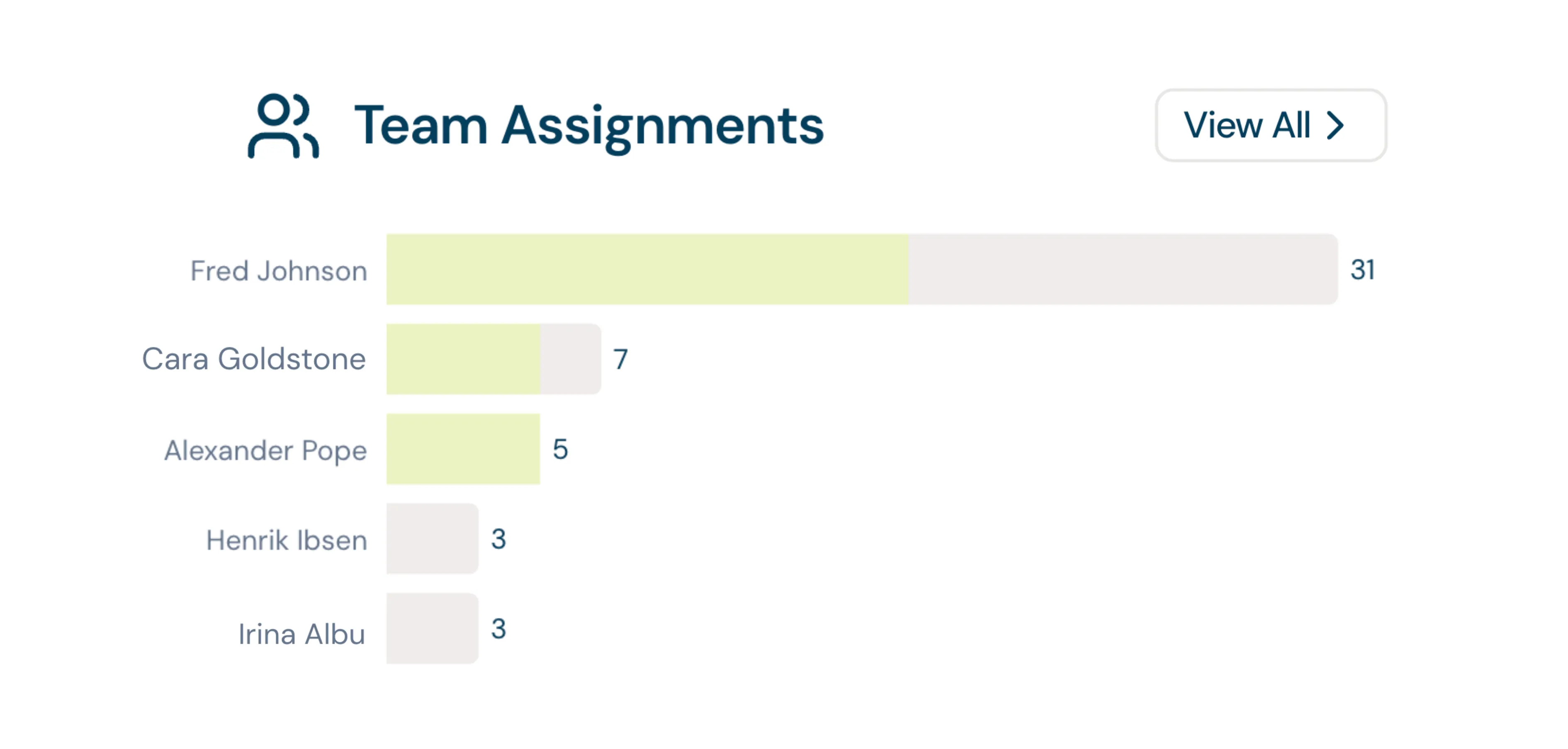
Three separate tools handle three separate jobs here, and it's worth keeping them distinct. Submission Tags group and filter submissions — you could do this by category, genre, region, or anything else worth tracking. @-mentioning a teammate inside a submission's Discuss tab flags a specific note to a specific person. Assigning a submission to a team member makes them its accountable owner. All three work individually or across a filtered batch.
| Tool | What it's for |
|---|---|
| Submission Tag | Grouping and filtering a set of submissions |
| @-mention (Discuss tab) | A one-off nudge to bring a note to someone's attention |
| Assignee | Making one person the accountable owner of a submission |
4. Sending submissions to a review panel
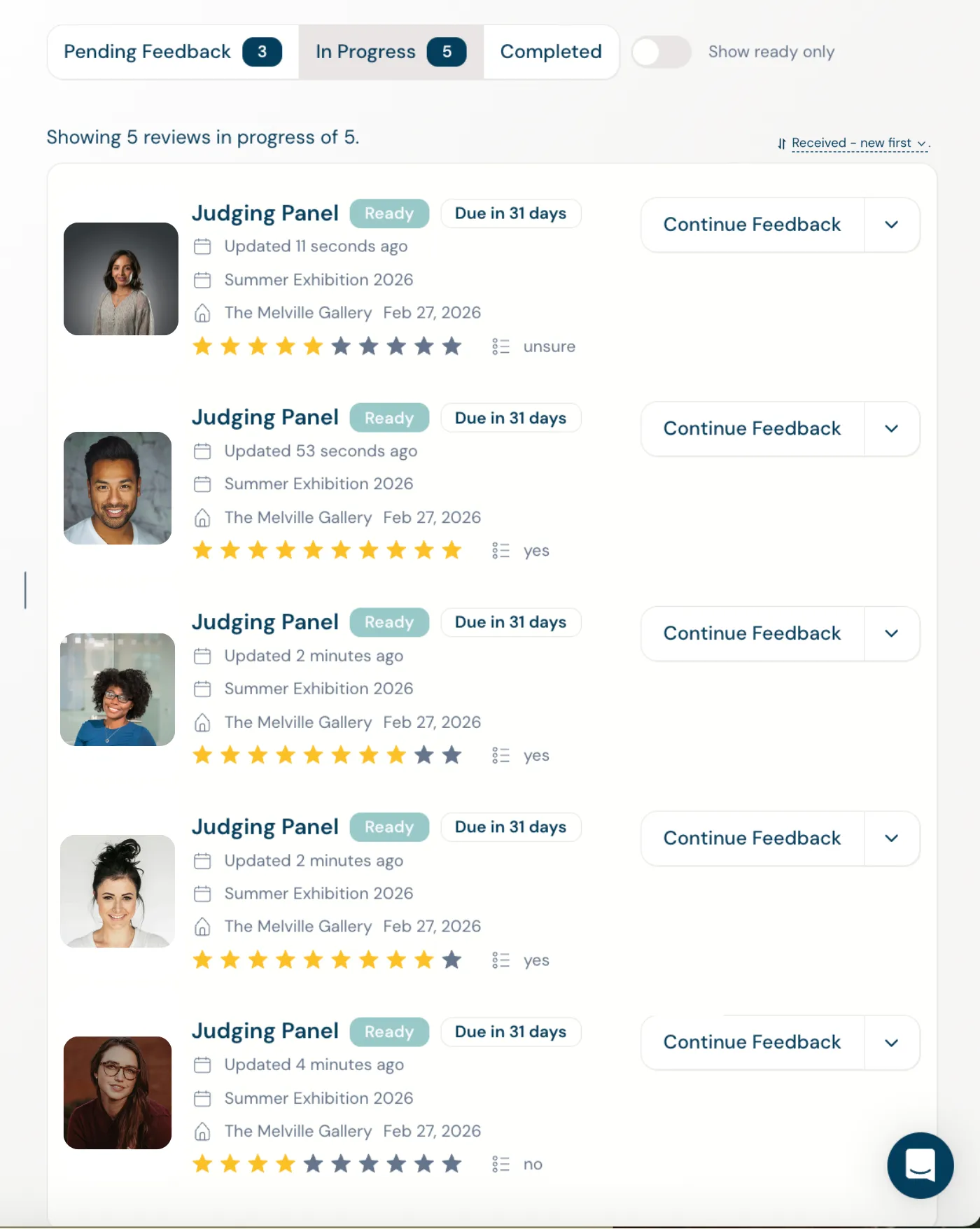
A Review Panel is a named group of reviewers or judges. They can be internal team members, external judges, or more often than not, a mix of both. Review panels are assigned to a stage of a project, with its own rules for scoring, voting, comments and due dates. Each member of the panel has their own personal Review Account and cannot see any of the admin or the scores/comments of other reviewers. They will be able to see all those submissions assigned to them and be able to work through each submission, saving their scores and feedback until they're ready to submit back to the admin team. Run as many panels as your programme needs, from a single first-sift panel to a different panel per category or round, and send submissions to them individually, in a filtered batch, or automatically as soon as they reach a stage.
5. Reading scores and comments
Once feedback starts coming in, Dapple gives you three different viewing options to assess.
| View | Best for |
|---|---|
| Reviews section (left-hand nav) | Seeing everything at once and checking completion progress |
| Reviews tab on a submission | Reading full context for one creator/applicant before deciding |
| Current Review column (Submissions list) | Ranking and bulk-acting on a whole cohort at once |
To rank a whole cohort by average score, group reviews by submission and sort by rating — just wait for reviews to show as fully completed first, since a partial average can still move.
6. Moving submissions on once review is done
A submission stays locked in its stage while review is in progress, so results can't be cut off mid-round — mark its reviews complete (individually, in bulk per stage, or automatically once a panel hits its maximum review count) to unlock it. Once scores are in, sort your Submissions list by score and bulk-move the group you're advancing in a single action.
| Stage | Typical action |
|---|---|
| New | Triage and assign an owner |
| Longlist | Tag by category or cohort, then send to a Review Panel |
| In review | Read scores and comments as they come in |
| Shortlist | Mark reviews complete, sort by score, bulk-move the top group |
| Decision | Message creators, export a record |
7. Exporting and reporting
Export a filtered list of submissions to CSV for analysis, reporting, or sharing with stakeholders outside of Dapple — admin permission only, generated in the background so you can keep working while it's ready. You can export single or multiple submissions, in PDFs or CSV and extract a zip of all desired attachments. Every form field, reviewer score, vote and feedback can be extracted for analysis and ready to share with anyone who doesn't have Dapple access.
| Use CSV when… | Use PDF when… |
|---|---|
| You need structured data for a spreadsheet or another system | You need a single, portable record of one submission |
| You're analysing or ranking a whole cohort | You're sharing with someone who doesn't have Dapple access |
8. Using AI tools alongside Dapple
You can use Dapple's MCP integrations to connect to your own intelligence tools to further analyse your data. Query your submission data using a tool like Claude to build custom reports, dashboards and analysis outside the platform.
Where to go next
This guide covers the day-to-day cycle once your form is live. If you're still setting up your first project or getting your organisation ready to launch, start with Getting Started or Projects in the Dapple Help Centre.